deploymentso-101onnx September 23, 2026 5 min read
From simulation to servo: running your ONNX policy on a real SO-101
What is inside a kualia ONNX export, how to read its metadata, a minimal onnxruntime loop for the SO-101, and the sim-to-real checklist before you power the servos.
By kualia team
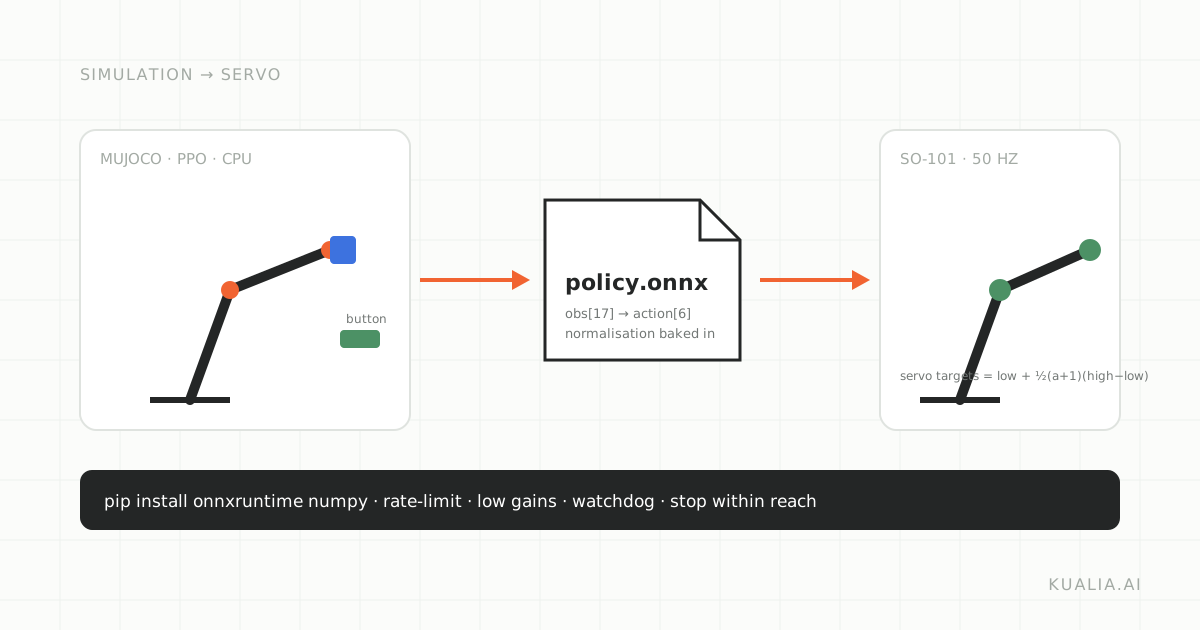
A trained policy in kualia is a single ONNX file. This post is about taking that file to a real robot, using the SO-101 desktop arm from LeRobot as the worked example: five position-controlled joints and a gripper on a fixed base, with a trick like "press the button on the table".
Nothing here needs PyTorch or Stable-Baselines3 on the robot. You need onnxruntime, numpy, and a way to read your servos and write targets to them.
What is in the file
The Export page takes the best completed run of a task (highest mean return) and produces <task>_run<id>_PPO.onnx. The graph has one input, obs, a float32 tensor of shape [1, obs_dim], and one output, action, float32 of shape [1, act_dim]. The batch dimension is dynamic. The opset is 17, so your runtime needs onnxruntime 1.16 or newer.
Four things about the graph matter for deployment:
- It is the deterministic policy. For PPO that is the mean action, exactly what
model.predict(obs, deterministic=True)returns in Stable-Baselines3. No sampling noise. - Observation normalisation is baked in. Training normalises observations with running mean and standard deviation, clipped to plus or minus 10. Those statistics are the first layer of the exported graph. You feed raw sensor values in the training order and the graph does the rest.
- Actions are clipped to the action-space bounds inside the graph, so the output is always within [-1, 1] per actuator.
- It is verified before you get it. After export, kualia runs the ONNX checker and compares the graph with the original policy on random observations; an export that differs by more than 0.001 is rejected. The verification result, file size and SHA-256 checksum are stored with the file.
The metadata
Metadata is embedded in the ONNX file's metadata_props and also saved as JSON next to it. For a "press the button" task on the SO-101 it looks like this (example values; your shapes come from your task):
{
  "format": "onnx",
  "opset": 17,
  "algorithm": "PPO",
  "deterministic": true,
  "input":  { "name": "obs", "dtype": "float32", "shape": [1, 17],
              "note": "RAW environment observation; normalisation is baked into the graph" },
  "output": { "name": "action", "dtype": "float32", "shape": [1, 6],
              "note": "clipped to action space bounds" },
  "action_space": { "type": "Box", "low": [-1, -1, -1, -1, -1, -1], "high": [1, 1, 1, 1, 1, 1] },
  "obs_normalization": "vecnormalize",
  "obs_clip": 10.0,
  "robot_model": "SO101",
  "verified": true,
  "max_abs_diff_vs_sb3": 2.4e-07,
  "sha256": "..."
}
Where does 17 come from? A kualia_sim task observes the robot's joint positions, then its joint velocities (clipped to plus or minus 50), then each observed object in SCENE order. The SO-101 has six actuators, so that is 6 plus 6, and a button adds five values: its position relative to the robot base (3), its slide position (negative while pressed) and its slide velocity. A task with a target marker instead of a button would add three. Read input.shape from the metadata rather than assuming.
When the task supports the browser simulator, the metadata also carries a browser_sim.recipe block with ctrl.low and ctrl.high, the exact actuator control ranges the action maps onto. Keep it; you need it below.
The inference loop
# pip install onnxruntime numpy
import json, time
import numpy as np
import onnxruntime as ort

sess = ort.InferenceSession("press_the_button_run17_PPO.onnx", providers=["CPUExecutionProvider"])
meta = {k: json.loads(v) for k, v in sess.get_modelmeta().custom_metadata_map.items()}
obs_dim = meta["input"]["shape"][1]
ctrl_low = np.array(meta["browser_sim"]["recipe"]["ctrl"]["low"])
ctrl_high = np.array(meta["browser_sim"]["recipe"]["ctrl"]["high"])

HZ = 50   # the task's CONTROL_HZ, shown on the Export page
STEP = 0.1  # max change in normalised target per tick, your safety choice
prev = np.zeros(6)

def act(obs):
    x = np.asarray(obs, dtype=np.float32).reshape(1, obs_dim)   # RAW values, training order
    return sess.run(["action"], {"obs": x})[0][0]                # already in [-1, 1]

while running:
    t0 = time.perf_counter()
    obs = build_observation()                  # your code: joint pos (rad), joint vel (rad/s), button state
    a = act(obs)
    a = np.clip(a, prev - STEP, prev + STEP)   # rate limit
    prev = a
    targets = ctrl_low + 0.5 * (a + 1.0) * (ctrl_high - ctrl_low)   # same mapping as in simulation
    send_joint_targets(targets)                # your code: Dynamixel goal positions
    time.sleep(max(0.0, 1.0 / HZ - (time.perf_counter() - t0)))
The mapping low + 0.5 * (a + 1) * (high - low) is the one the simulator used in training, so the policy's -1 and +1 land on the same joint angles on the real arm. The SO-101 model ships no standing keyframe, so a zero action means all joints at zero, with the arm folded upright; that is where every training episode started, and it is where the real arm should be when you start the loop.
Building the observation on hardware
This is the part people underestimate. The order and units must match the simulation exactly: joint positions in radians in the model's joint order, then joint velocities in radians per second. Velocities from Dynamixel servos are noisy; differencing positions over the control period and low-pass filtering is usually closer to what MuJoCo reported.
The object part of the observation is the honest problem. In simulation the button's position relative to the base and its press depth are read from the physics. On the table you have to supply them: a fixed, measured button location for the three position values, and a real switch or a force reading for the press depth. If you cannot sense an object quantity, do not guess it; retrain with a task that does not observe it, or fix the object where the simulation put it and hard-code the values.
Control loop cautions
- Rate. Run at the task's
CONTROL_HZ, 50 Hz for the SO-101 by default. Do not resample actions at another rate; if your loop cannot hold 50 Hz, retrain withCONTROL_HZset to the rate you can hold. - Clipping and rate limiting. The graph already clips to [-1, 1]. Add your own limit on how far a target may move per tick, as in the loop above, and start it small. A policy that learned on ideal servos will command jumps a real horn cannot follow.
- Gains and speed. Start with low servo gains and a low velocity limit, then raise them. The first minute is about whether the motion looks like the simulation, not about success.
- Safety stop. Keep a hardware stop within reach, and put a watchdog in the loop: if a sensor read times out or an observation is non-finite, hold position and exit. Never let a stale observation drive a fresh action.
- Workspace. Clear the table. Training placed objects within about 0.15 to 0.32 m of the base; make sure nothing else is in reach.
The sim-to-real checklist
- Export succeeded and
verifiedis true; the SHA-256 on the robot matches the Export page. input.shapematches the observation you build;output.shapematches your actuator count.- Joint order, radians and radians per second are the model's, not your driver's defaults.
- Object quantities in the observation are sensed or fixed, never invented.
- Action mapping uses the metadata's control ranges; a zero action reproduces the start pose.
- Loop rate equals
CONTROL_HZ; measured, not assumed. - Rate limit, low gains, watchdog and a physical stop are in place before the first run.
- Test with the policy running but the servos torque-off first, printing targets, then power on.
Try it
Pick the SO-101, build a reach or press task, run it, and open Export: you can try the exact ONNX file live in the browser simulator before you download it. The runtime notes and the metadata reference are in the documentation. If something on hardware does not match the simulation, the support desk wants to hear about it.